You've got a cover letter in one PDF, a resume in another, and a portfolio in a third. Or maybe it's five separate invoices your accountant needs as one document. Or a 12-chapter report your team produced in pieces and now needs to be a single file.
Whatever the situation, merging PDFs is one of those tasks that should take 30 seconds and often ends up taking 30 minutes, especially if you're hunting through menus in software that wasn't designed with this in mind.
This guide covers the fastest ways to combine PDF files on any device, what to watch out for, and a few things most people don't think about until after they've already merged.
Before You Start: Two Things Worth Checking
Get your files in order first
It sounds simple, but taking 10 seconds to rename your files properly before merging can save a lot of hassle later. Use clear file names with numbers at the beginning, like 01_CV_John_Doe.pdf , 02_Cover_Letter.pdf , or 03_Portfolio_2026.pdf . Most PDF merge tools automatically keep the upload order, so your files will appear exactly in the sequence you select or name them.
Check for password protection
If any of your PDFs are password-protected, you'll need to unlock them before merging. Trying to combine a locked PDF usually results in an error or a blank page where that document should appear. If you need to remove a password first, Unlock PDF Password handles that in one step.
Method 1: Online PDF Merger (Fastest, Any Device)
If you need to merge PDFs right now without installing anything, an online tool is your best option.
Go to Merge PDF and:
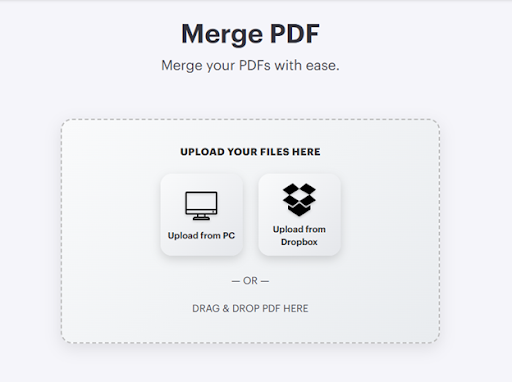
- Click "Select PDF files" or drag and drop your files directly onto the page
- Arrange them in the correct order — drag to reorder if needed
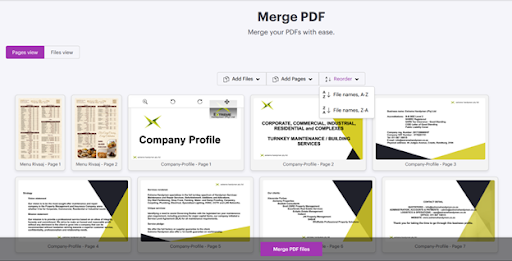
- Click "Merge PDF"
- Download your combined file
The whole thing takes under a minute for most files. It works on Windows, Mac, iPhone, Android anything with a browser. Your files are processed with encryption and deleted automatically after you download the result. If some pages are photos or scans, turn them into PDFs first with Image to PDF.
When to use this: Anytime you need a quick merge without software. Especially useful on mobile or when you're on someone else's computer.
Method 2: Mac Preview (Built-in, Free)
Mac users have a perfectly capable PDF merger sitting in their dock already. Preview handles basic merges without any downloads.
- Open your first PDF in Preview
- Go to View → Thumbnails to display the sidebar
- Open the second PDF in another Preview window and enable Thumbnails there too
- Drag the thumbnail pages from the second document into the sidebar of the first, placing them where you want them
- File → Export as PDF to save the merged result
This works well for combining two or three files. It gets tedious with more than that because you're dragging individual thumbnails rather than whole documents. Also, always use Export as PDF rather than just saving, saving modifies the original file.
When to use this: Quick two-file merges on Mac, when you need to intersperse individual pages from different documents.
Method 3: Adobe Acrobat (Most Control, Paid)
If you work with PDFs daily and already have an Adobe subscription, Acrobat gives you the most control:
- Open Acrobat
- Tools → Combine Files
- Add your files, drag to reorder
- Click Combine
Acrobat also lets you combine non-PDF files like Word docs, images, spreadsheets, converting them to PDF and merging in one step. Useful if your collection of files isn't all PDFs yet.
The downside is cost. Adobe Acrobat Pro runs $20+/month. For occasional merges, it's hard to justify.
When to use this: Regular use, mixing file types, when you need fine control over the final document structure.
Method 4: Windows Print to PDF (No Software Needed)
This method is more of a workaround than a real merge solution, and it comes with clear limitations.
- Open the first PDF in your browser (Chrome or Edge)
- Print → Destination: "Save as PDF" → Save
- Repeat with each file, appending pages
Actually, this approach doesn’t properly merge multiple files into a single document. It’s not reliable for combining PDFs, and in most cases it just adds extra steps without giving proper control over file structure.
For a cleaner result, it’s better to use the online merge tool instead.
Dealing With Common Problems
The merged PDF is huge
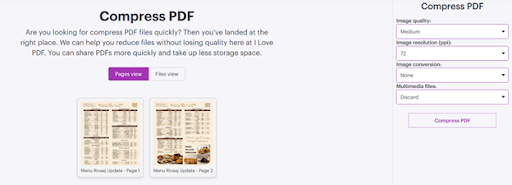
Merging PDFs doesn't compress them; it just combines them. If your final file is too large, run it through a compressor after merging. Compress PDF handles this in one step.
The pages are in the wrong order
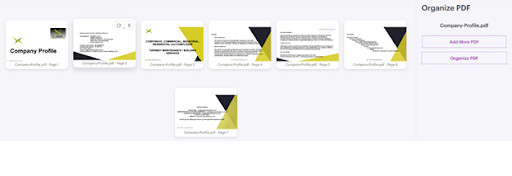
Most online tools let you reorder pages after uploading but before merging. Look for a drag-and-drop interface. If you've already merged and the order is wrong, tools like Organize PDF let you rearrange pages in an existing PDF without starting over.
One of my PDFs won't merge — I get an error
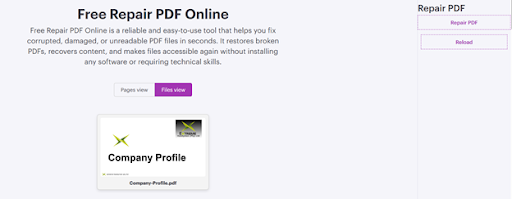
Usually this means the file is password-protected or corrupted. Try opening it on its own first to confirm it works. If it's locked, unlock it first. If it won't open at all, Repair PDF can sometimes recover damaged files.
The fonts and formatting look different after merging
This shouldn't happen with a proper PDF merger; the content of each document should be preserved exactly. If you're seeing this, the tool you used may have converted the PDFs to images and back rather than merging them natively. Use a different tool and check the result before closing out.
I need to merge 20+ files
Most online tools handle this fine. Upload all your files at once, arrange the order, merge. The only limit is usually total file size, typically 100MB to 500MB depending on the service.
Tips That Save Time Later
Add page numbers after merging
When you combine multiple documents, the page numbers from each source document don't automatically update. If your merged PDF needs consistent page numbering throughout, add them after merging with a tool that lets you customize the format and starting number. Add Page Number does this in about 30 seconds.
Add a bookmark or table of contents
For longer merged documents, especially reports or proposals, a basic table of contents makes the reader's life much easier. This is a manual step but worth doing for anything you're sending to a client or manager.
Keep a copy of the individual files
Once you've merged, don't delete the originals until you've confirmed the merged version is correct. This seems obvious until you've merged six files, deleted the originals, and then realized one section was missing.
Check the file size before sending
Gmail limits attachments to 25MB. Outlook is 20MB. If your merged PDF exceeds this, compress it first or use a file sharing link instead.
When Merging Isn't the Right Answer
Sometimes combining everything into one PDF isn't actually what the situation calls for:
- If different people need different sections, individual files are easier to manage. Merging everything and then telling someone “Your part is on pages 14–27" is less useful than just sending them the relevant PDF.
- If the document will be updated regularly, merged PDFs become a maintenance problem. Every update means re-merging everything. Consider whether a document management system or shared drive makes more sense.
- If file size is already a concern, merging a multi-part document into one large PDF and then trying to email it can work against you. Sometimes keeping parts separate is the smarter move.
If you only need some pages from each file, pull them out with Extract PDF Pages before merging.
The Fastest Workflow for Most People
Here's the streamlined version for the most common use case, combining several files into one clean PDF to send to someone:
- Rename files with number prefixes so they sort in the right order
- Check none are password-protected
- Go to Merge PDF
- Upload all files, confirm the order
- Click Merge, download the result
- If it's too large for email, compress it at Compress PDF
Done. That's genuinely it. The whole process should take two to three minutes for most sets of files.
Try it now: Merge your PDFs for free at Merge PDF , no account needed, any device, files deleted automatically after download.
Frequently Asked Questions
Is there a limit to how many PDFs I can merge at once?
Most online tools including ilovepdf.biz let you merge unlimited files in one session as long as the total size stays within the upload limit. For very large batches, merge in groups of 10 and then merge the results together.
Does merging PDFs reduce quality?
No. Merging combines files at the document level without reprocessing images or text. The content of each PDF stays exactly as it was in the original files.
Why are my page numbers wrong after merging?
Page numbers embedded in the original PDFs don't automatically update when you merge. You need to add new page numbers to the merged document using a PDF numbering tool after combining.
Can I merge PDFs that are password protected?
Not directly. You need to remove the password protection first, then merge. Use Unlock PDF to remove the password, then proceed with merging.
How do I change the order of pages after merging?
If you merged in the wrong order, use a PDF organizer tool to rearrange individual pages without starting over. Organize PDF lets you drag and drop pages into any order after the fact.
